One of the advantages of every good CMS is an opportunity to improve it with new functionality. The most popular CMS (for example WordPress) gives you almost infinite opportunities in that area. This is possible thanks to huge programmers community, who create special addons (like plugins), which can be connected with your website. There are many useful plugins, even for free. However, cost of payable plugins is usually symbolic (starting from few $).
You can order a development of plugin, which will fulfil certain kind of expectations. Thanks to them you can improve your service in terms of functionality (for example start your own e-shop), however here we want to show you these elements, which will help you to manage your service, increase its security, etc. We will show you how to find and install that kind of plugin as well (on example, step by step).
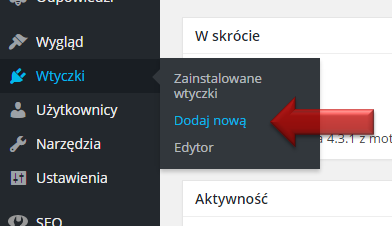
The first plugin, which you should install (and on which you can learn how to complete this process) is one of the most recommended plugins to create backups. To do so, go to your WordPress panel and from the left menu choose: 'Plugins' -> 'Add new';
In the upper right field type: 'UpdraftPlus Backup and Restoration' and press 'enter'. The search engine of plugins will show results:
Few words before we move to the next step: before installation of new plugin you should check (by clicking on 'details') if:
- - it's compatible with your WordPress version, if not then:
- - check if the last update has been added during last few weeks, max. few months (which will tell you, if author improves this plugin, so it won't turn out that it will stop to be useful in a while),
- - check if it contains a lot of intallations and positive opinions.
Remember that, these plugins were usually made by external authors and you will not get a 100% certainty of working in every conditions. There is always a risk that these plugins won't fit our expectations. So you should minimalize risk through aware choice.
Next to plugin's name click on 'Install'. In basic version (it's enough for beggining) plugin is free. Installation might take a while, and CMS will inform about every step. In the end you should see an information like: 'Plugin has been installed'. After that click on link 'Turn on the plugin'.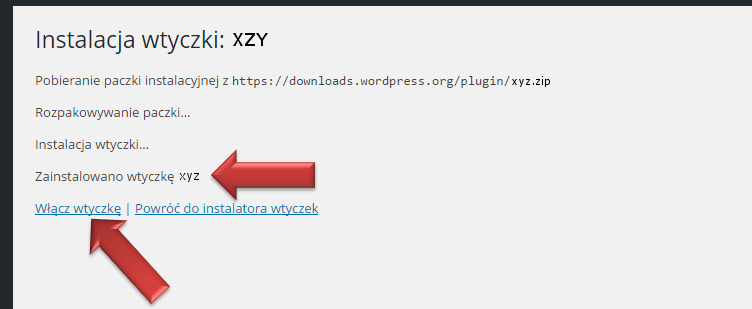
After that you should move to configuration. Click on the left 'Plugins' -> 'Installed plugins', which will show a list with all installed addons. Then click 'Settings' which can be found next to the new plugin's name. 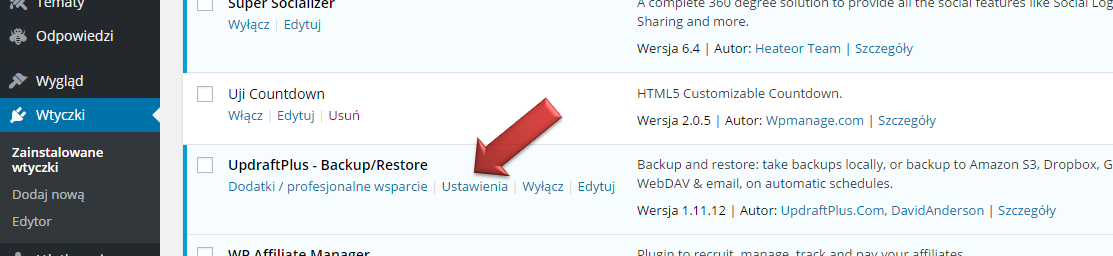
In case of 'UpdraftPlus' plugin you should configure rules of how it will work and its automation. Below you can see a list of options and proposed values, which you can adjust to your own needs: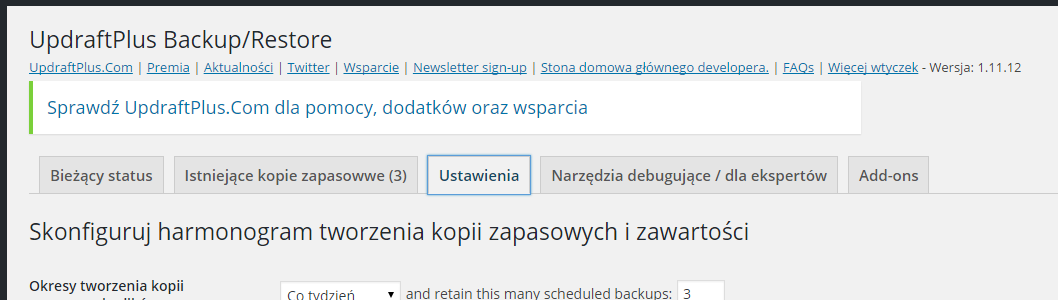
- - Periods of file backup creation, for exmaple 'a week'
- - and retain this many scheduled backups, for example '3-5'
- - Frequency of database backup creation, for example 'every week'
- - and retain this many scheduled backups, for example '3-5'
- - Files included in backup: mark 'Plugins', 'Themes', 'Send'
- - Turn off these : 'backup*,*backups,backwpup*,wp-clone'
- - Turn off there: 'upgrade,cache,updraft,backup*,*backups,mysql.sql'
- - Reporting: z 'Email', thanks to which you will receive and information that backup has been made.
Other options should be left in default settings. Next confirm your choice by clicking on 'Save settings' button. After that go to 'Current status' tab, where click on 'Create a copy now':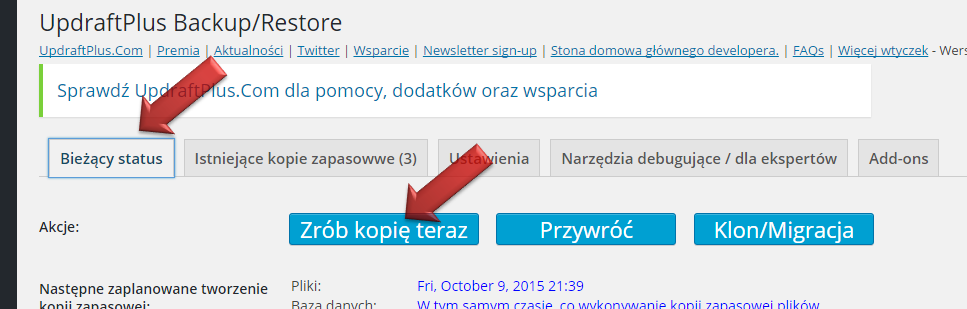
Depending on how big your service is (amount of sended files and graphics, size of you database, installed addons and templates, etc.) and speed of the server, procces or creating a copy might take from few seconds to several minutes. When in progress, the plugin will inform you about status:
In the end you will receive an information that the backup has been created. You can see th effect in 'Current backups' tab: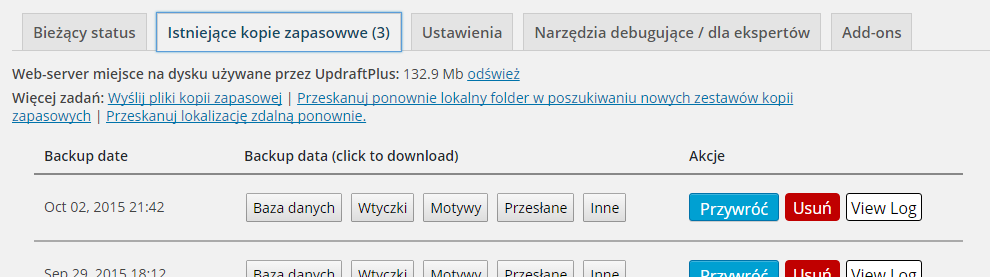
Ok, so that was the process of first plugin installation, in addition a very important one regarding security of your service. It is a good choice to keep created backups in some other place than your server. At least backups created after introducing meaningful changes on your service. It will improve a security against viruses. Most of backup plugins allow to complete this process manually or using automation, for example by copying archives to remote server. If you will encounter problems with losing data in the future, then you will be able to restore it using one the backups.
Here is the list of other plugins, which you should consider to install (clicking on its name will open web sire with all the details):
- - Yoast SEO - a plugin, thanks to which you will meet many requirements for browsers like Google for better indexing of your web site (the position of your website will increase in search results).
- - WP Mail SMTP - an addon. which will secure sending e-mails from your web site throguh web server.
- - Polylang - thanks to this addon you will be able to start multilanguage version of your service. After installation you will be able to create every article in different language version.
- - Contact Form 7 - a plugin with many possibilities of creation even very expanded forms. For sure it will be needed to create a contact form on your website.
- - Advanced noCaptcha reCaptcha - plugin, which will add protection from spam automats or breaking in to our web site.
- - Cookie Law Info - a small addon, thanks to which you will meet requerements for EU law, ordering to inform Internauts about your cookie files management rules.
Installation of every plugin or addon listed above is very similar to the one described in this guide.