How to move WordPress and keep all the work you put into this project, so you don't have to start over? Fortunately you can copy your service 1:1 not only in the range of its "engine", which is CMS, but all the addons, databases, created content txt/img/audio/video etc. There are two basics methods to do it:
- - 'manual', when you need to copy specific files and database by your own,
- - automated, when you can use one of the plugins created excatly for that kind of action, which will do most of the work for us.
In this case you can use ‘Duplicator’ plugin, which one of the most popular and easier solution. Instalation is very simple. 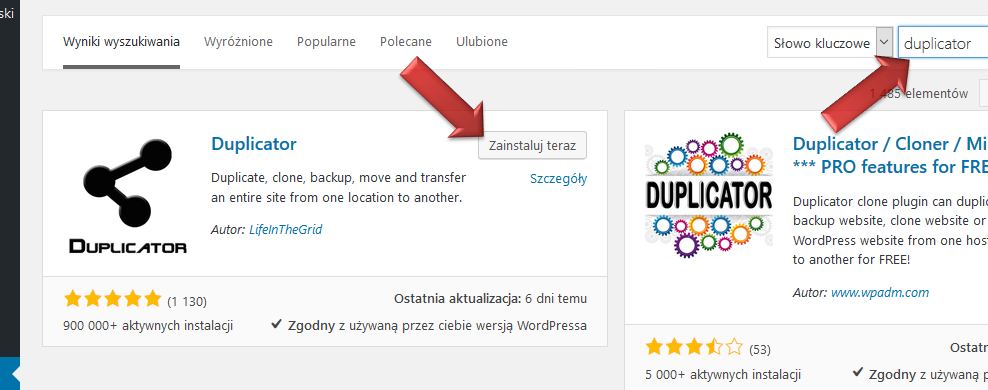
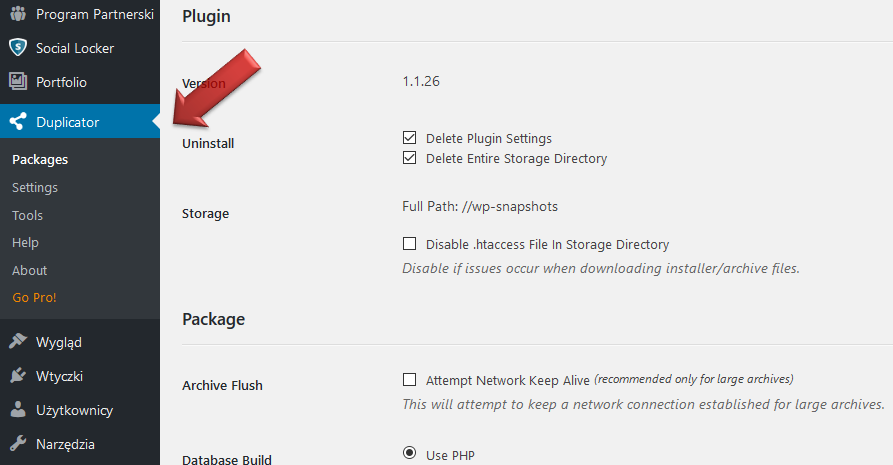
First, you need to create a special copy of your service. To do so click 'Create New' button: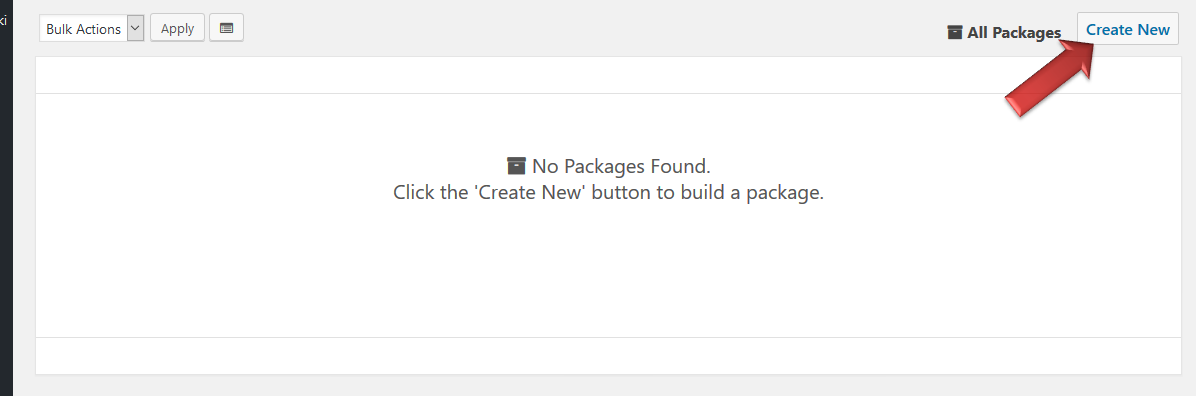
Next, you should check if your server's settings match plugin's requirements. If yes then set the name for created package (it can be default). You can add addinational describe as well if you want to. In 'Archive' section you can exclude chosen files from copy or database table (in most cases that won't be needed). Section 'Installer' allows to put available data to new database, but you can leave it for later: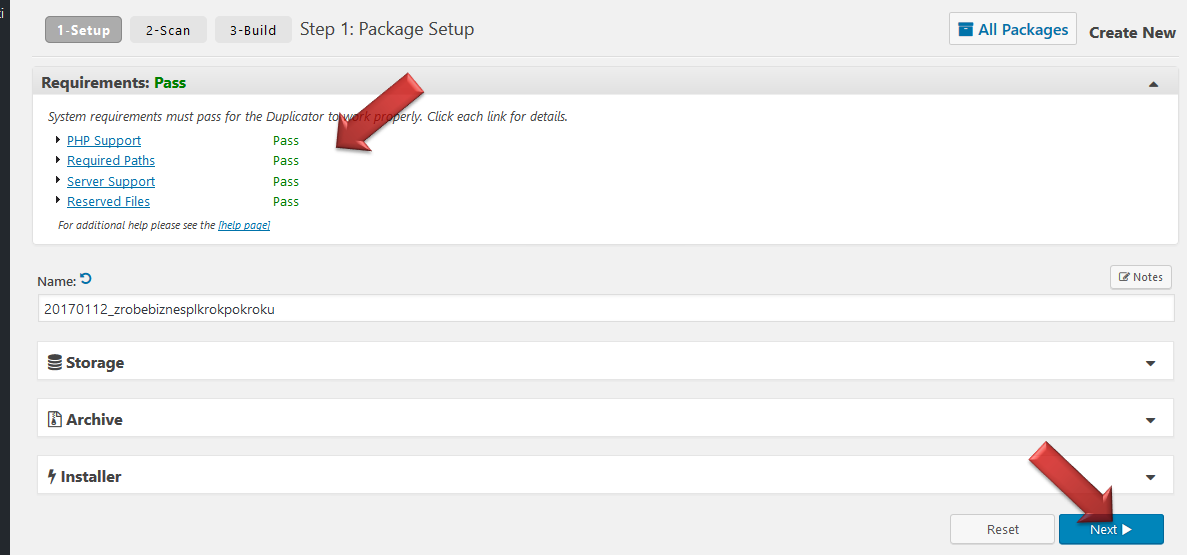
After clicking 'Next' the plugin will check if you have right server's settings and if files are correct. There should be a 'Good' sign next to most of the positions. In case of 'Warn' communicate, you can try to complete migration proccess as well, because this warning might relate to less important things, like too big video files (you can copy them seperately after). Next click on the 'Build' button, which will start the creation of package process. 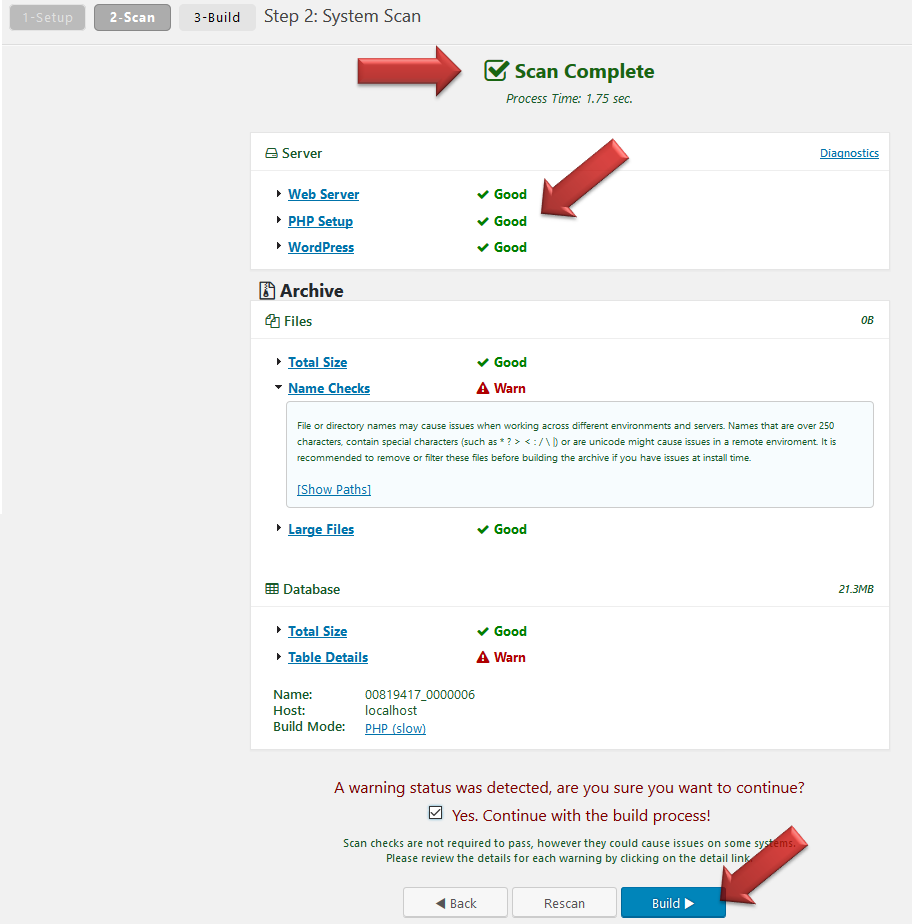
After several minutes a confirmation of package preperation should appear along with two buttons: 'Installer' and 'Archive'. Using both of them, you can download instalation file on your hard disk (installer.php) and archive with site files: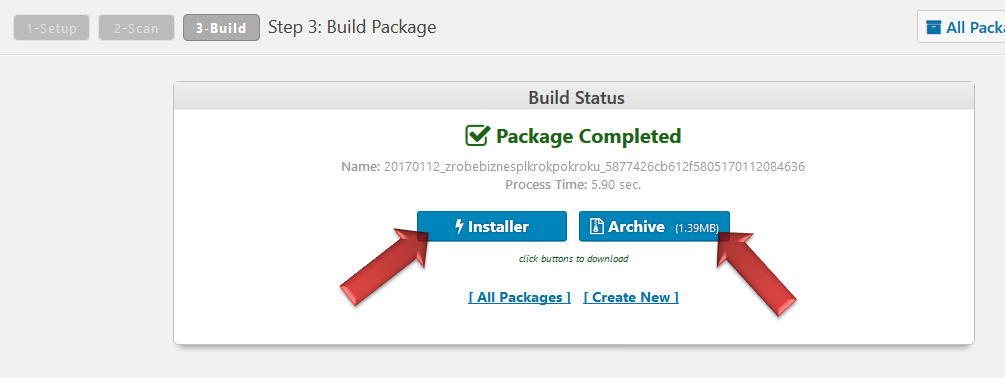
Files will be available on the list with all the packages as well:
Then you should copy both of these files (instalation one and package) to the new server into main directory in which service will be installed: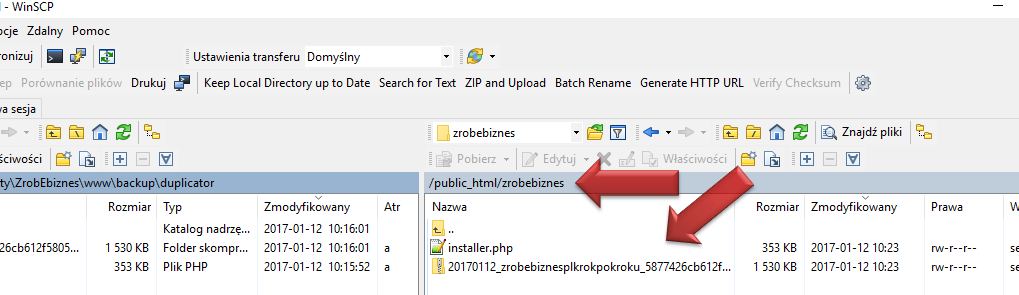
Next, type the address of new server in the browser (for example: 'xyz.cln.servizza.it') and after it put '/' along with subdirectory name. In the end you have to add: '/installer.php'. The whole address should look like :' http://xyz.cln.servizza.it/service1/installer.php'. Now you should see installer site in new place, where access data to database should be typed: host, database name, username and password. That data should be copied from the right managment site of our server: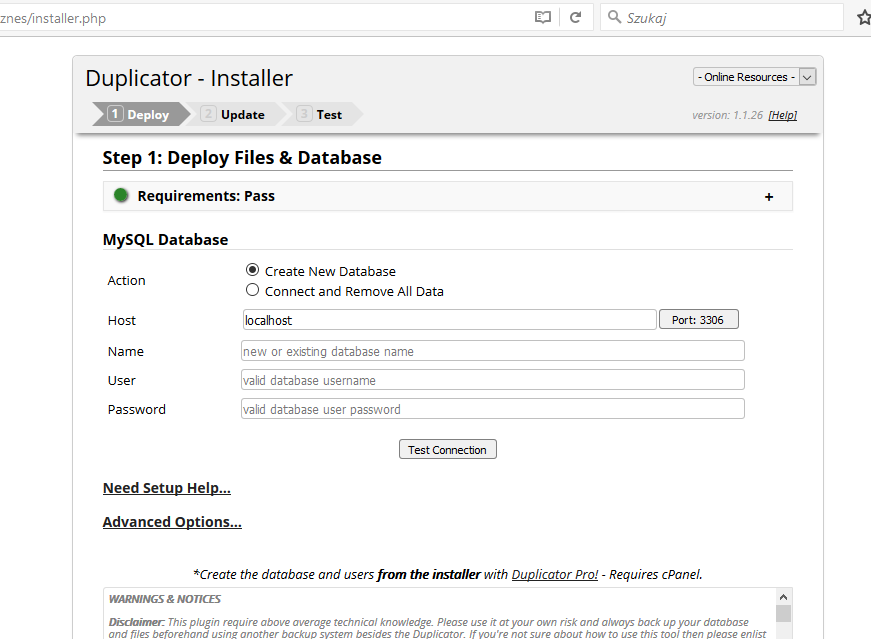
Caution, make sure that you are typing data of the right database, if you don't want to lose them forever!
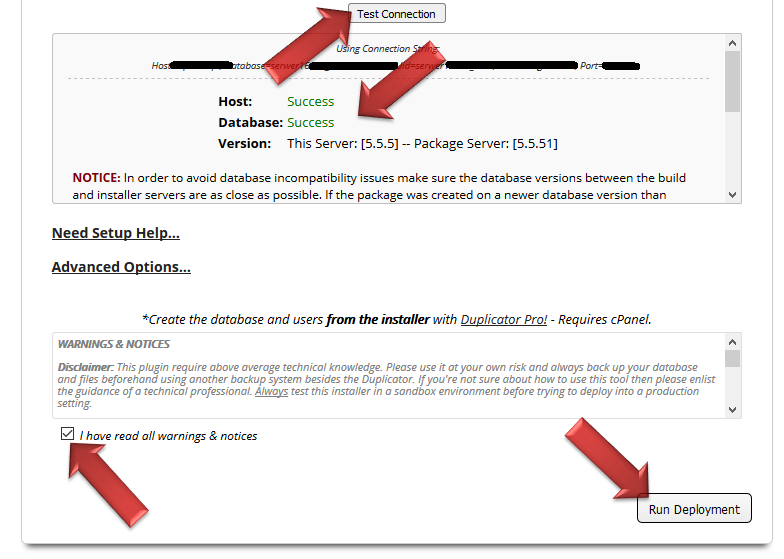
In this moment you can try 'Test Connection' option, thanks to which you can verify correctness of typed data. Next mark condition agreement and click on 'Run Deployment' button:
Now you need to wait a while: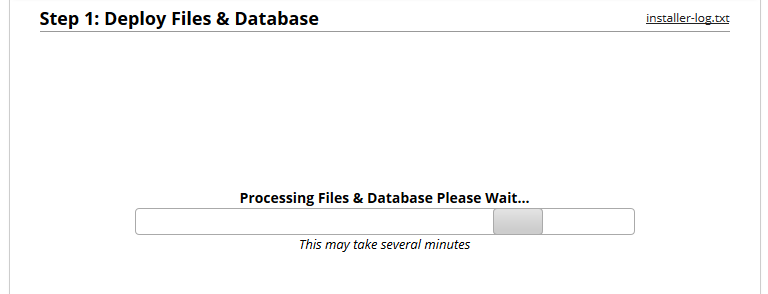
Then check if the plugin properly identified new paths and site title ('New Settings'). After, if you dont want to keep the current data of new admin account, you can type new ones (but it's not necessary). Now click on 'Run Update' button.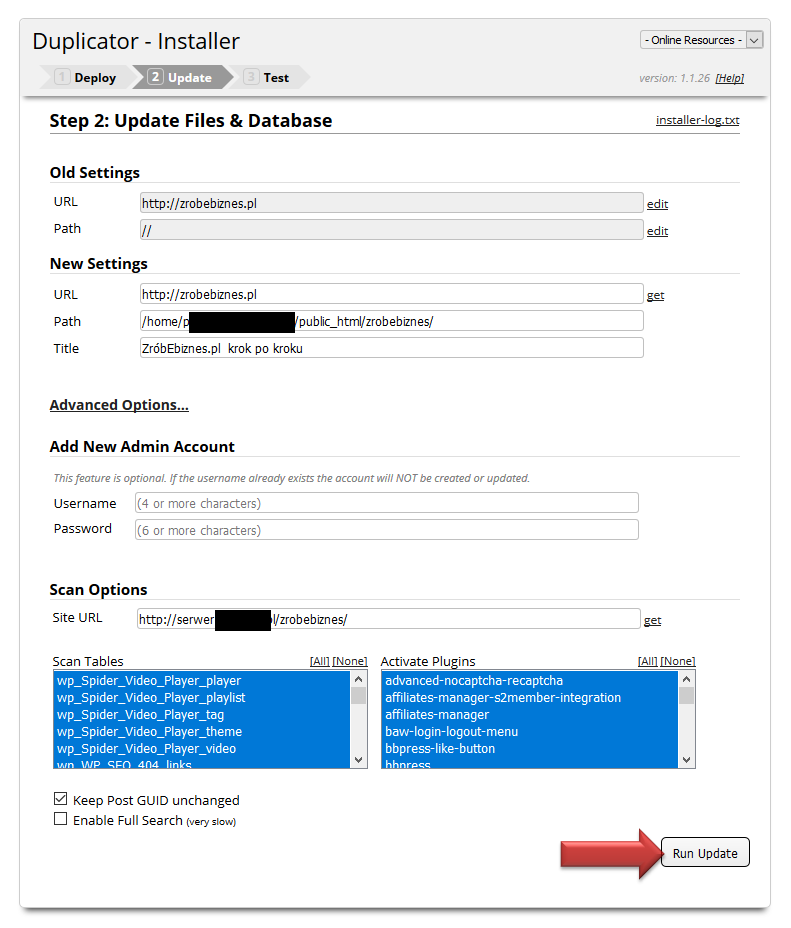
Now you need to be patient, especially if most of packages with service are big. After installation is completed you should gain access to the final step which is 'Test', where you will have four possibilities:
- - ‘Install Report’ - detailed report from instalation process,
- - ‘Save Permalinks’ – a link to the cockpit of new WordPress, and specifically to the site of direct links, in which you should only click 'Save changes' without doing any changes (just confirm them),
- - ‘Test Site’ – a link to moved web site, on which you can check if everyting works like it should,
- - ‘File Cleanup’ – an option, thanks to which you can remove unwanted files like instaltion package for example (don't forget to "clean" after you check everyting, due to security reasons).