Let's log in to our WordPress panel by typing :' your_site.com/wp-admin/' in your browser. Next type your login and administrator password, which you have created during installation. After logging in, you should see a starting panel of this site. It should look similar to this: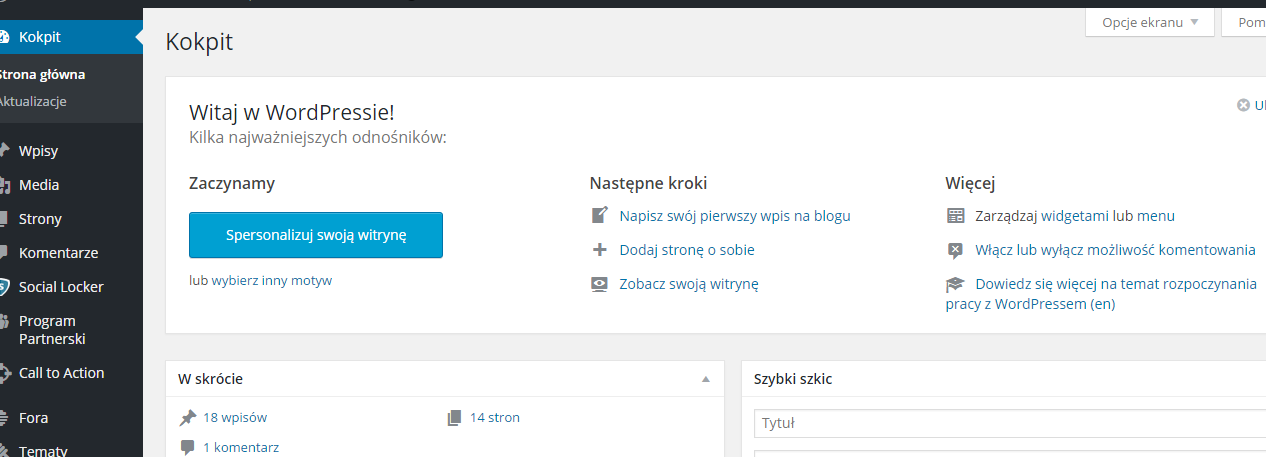
There are few main elements that should be configured on beginning. On the left side you should see main menu. Click on 'Settings > Overall'; 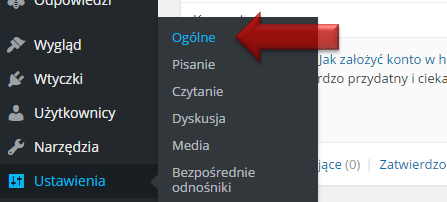
After that you will see a site, on which you can change tittle and description of it, which will be displayed for example in upper part of your site (it depends on theme, which you will choose). In addition you can set time zone, data and time format, administrator's e-mail, etc.
Then click on 'Settings' -> ' Discussion', where you can change options binded with comments. This choice is yours, it depends on your preferences and character of web site, so you have to decide about these details: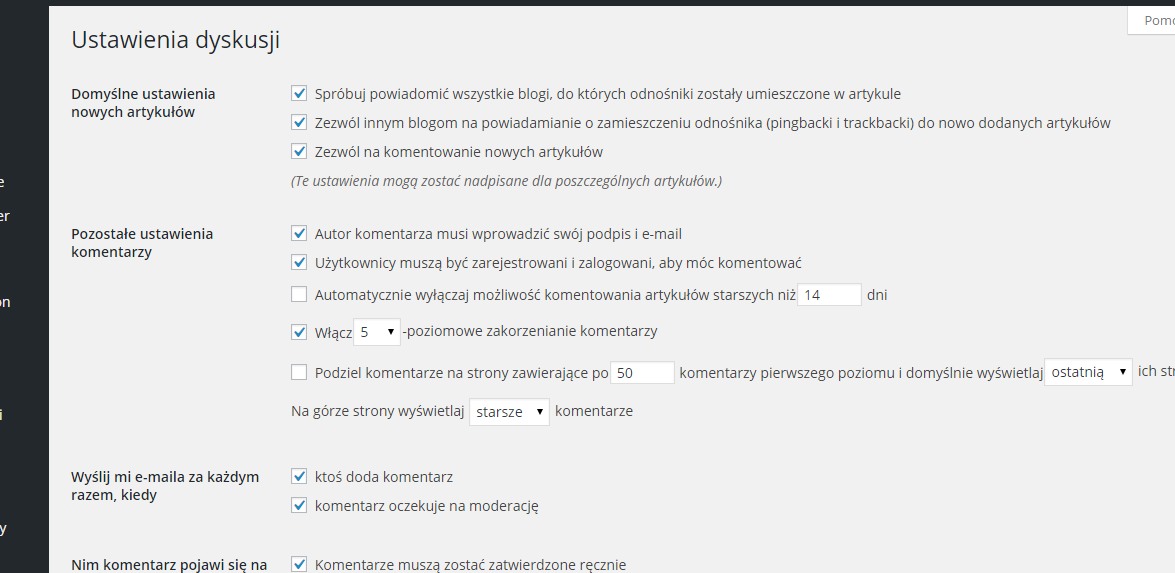
Now, let's move to: 'Settings'->'Direct link', where you can decide how links to your service should be displayed. Eventually, you can leave 'Default' option, nevertheless changing it to more friendly way should be a good call(For users as well as for browsers). To save all the changes press 'Save changes':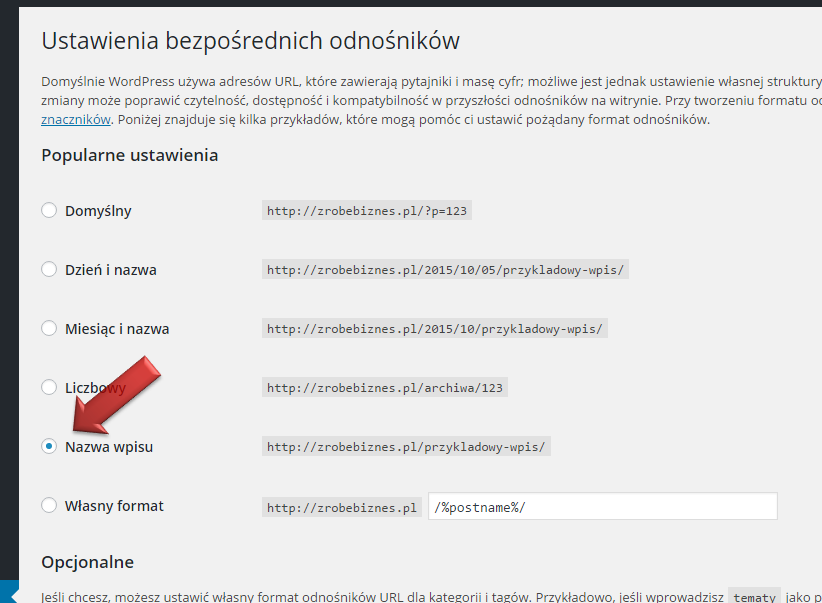
Another initial settings can be added through 'Appearance' section (located in menu on the left as well):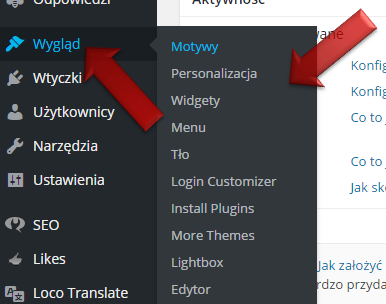
In particular you have to choose Motive of our CMS, that is a 'skin', which will be responsible for its appearance. There are few default templates to choose from, which you can check one by one to see how your service looks like. You don't have to choose only from the ones listed here. You can install whatever skin you'd like to have on your site. There are many themes on the Internet, payable (few $) as well as free ones.
Next you should configure initial menu, which is a part of your website responsible for main navigation in your service. Depending on theme, which you will finally choose, you can put even few different menus (for example - upper horizontal, side vertical, etc.). You can add various elements to that menu, like for example sites, categories, entries or manually added links. If you want to change the order of these elements simply grab a chosen one and drop it the place you want it to be (using left button of your mouse): 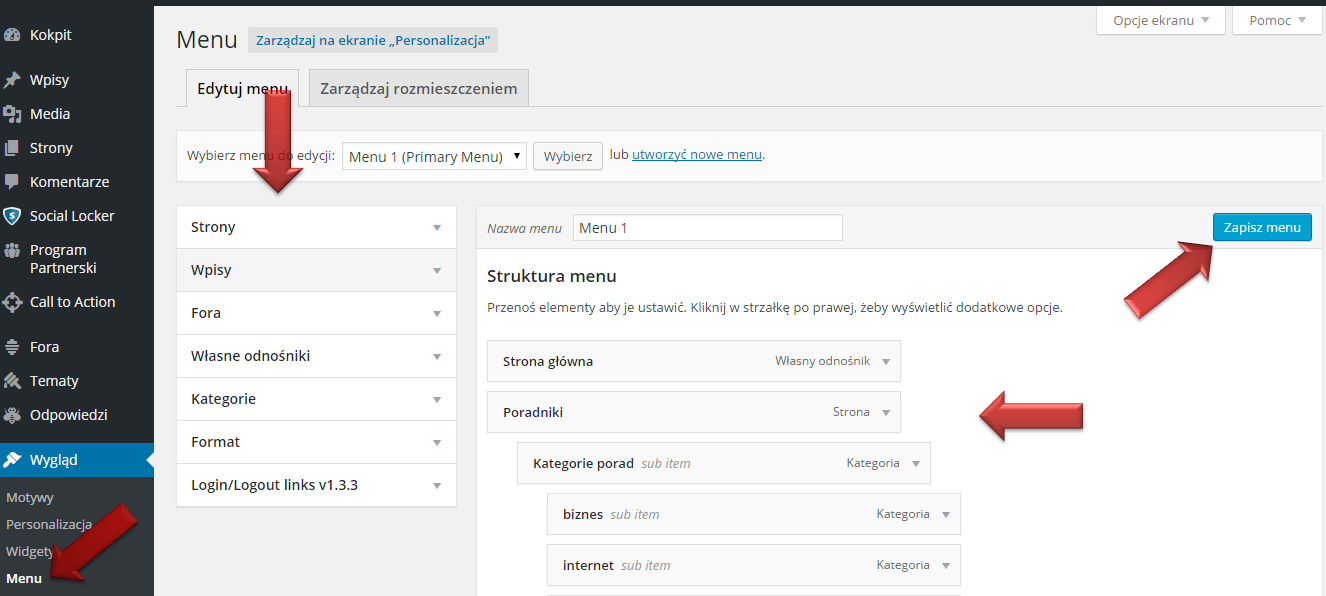
You can check every change that you've done right after you approved it and decide if this is what you want. The best way do it is to open two browser windows. In the first one you can have your panel running ('your_site.com/wp-admin/') and your main site in the other one('your_site.com'). If you want to see differences just refresh the 2nd one after every change you've made.
One more word to the end regarding future content of your website. WordPress gives you two ways to publish your site: as static sites or as entries.
- static sites (menu on the left: 'Sites') - here you can add content, which are permanent for your web site, as for example: site 'About me', contact form, etc.
- entries (menu on the left: 'Entries') - here you add all entries regarding 'blog nature', as for example: news, consecutive guidebook, entries regarding publish date, etc.
You can publish your concent in both ways, although it is good to mantain partition between them. In addition you should assign entries to specific categories, which you can manage from: 'Entries' -> 'Categories'.
Ok, that's most of initial settings. Your service slowly starting to accomplish assumed functionality. Of course this is only beginning of possibilities, you can improve it in many ways.