- - możesz użyć autoinstalatora w cPanel lub:
- - możesz samodzielnie go pobrać i zainstalować, wg poniższej istrukcji.
Wejdź na stronę pl.wordpress.org i kliknij w przycisk 'Pobierz WordPressa x.x.x' (gdzie 'x.x.x' to numer najnowszej wersji, np. '4.9.1'):
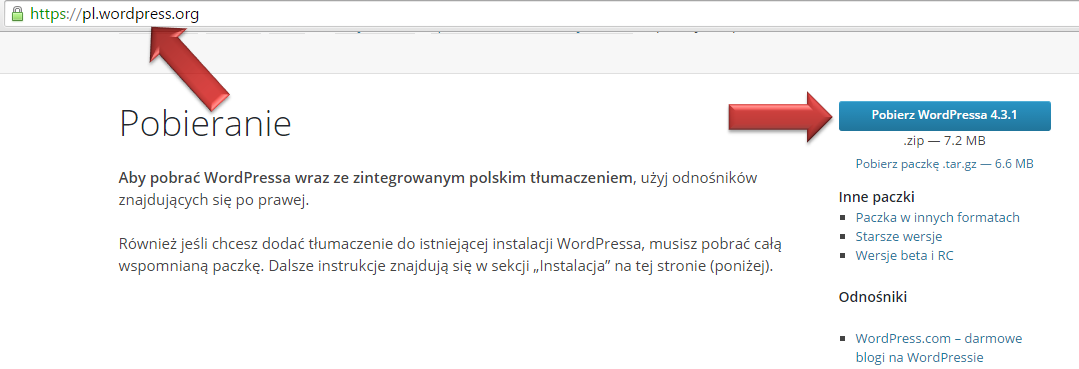
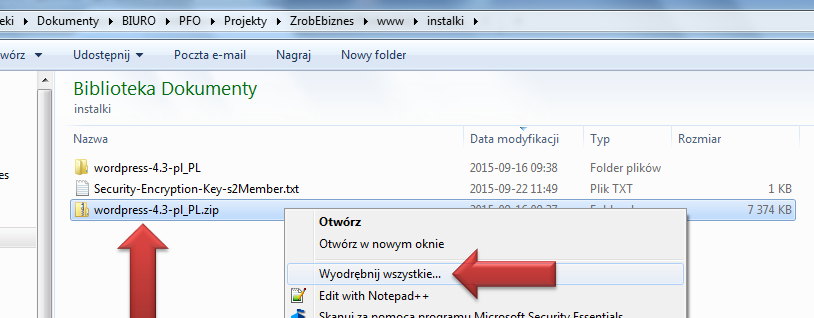
Zapisz plik o nazwie 'wordpress-x.x.x-pl_PL.zip' na dysku swojego komputera (zapamiętaj miejsce). Następnie otwórz lokalizację zapisanego pliku (w zależności od Twoich ustawień, np.: 'Start' -> 'Komputer' -> 'Pobrane' lub w miejscu, które wskazałeś podczas pobierania). Pobrany plik jest spakowany w archiwum ZIP, więc wskaż, gdzie ma zostać ono rozpakowane. W tym celu kliknij na pobranym pliku prawym przyciskiem myszy i wybierz polecenie 'Wyodrębnij wszystkie...', wskaż miejsce i potwierdź kliknięciem w 'Wyodrębnij':
W wybranym miejscu pojawi się katalog o analogicznej nazwie, np. 'wordpress-x.x.x-pl_PL'. Wejdź do katalogu i sprawdź, czy widoczne są pliki i katalogi podobne do zdjęcia: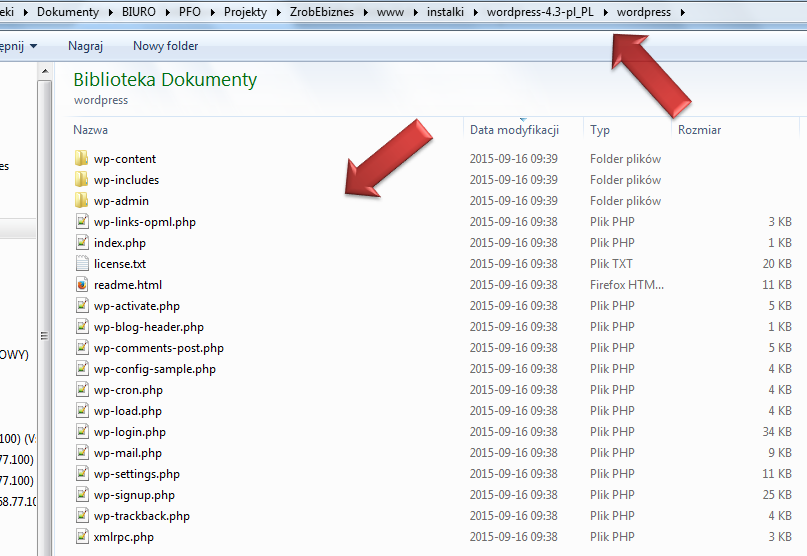
Ok, tym samym jesteśmy gotowi do zainstalowania naszego pierwszego CMS'a na naszym pierwszym serwerze. Uruchamiamy klienta FTP i łączymy się z naszym serwerem:
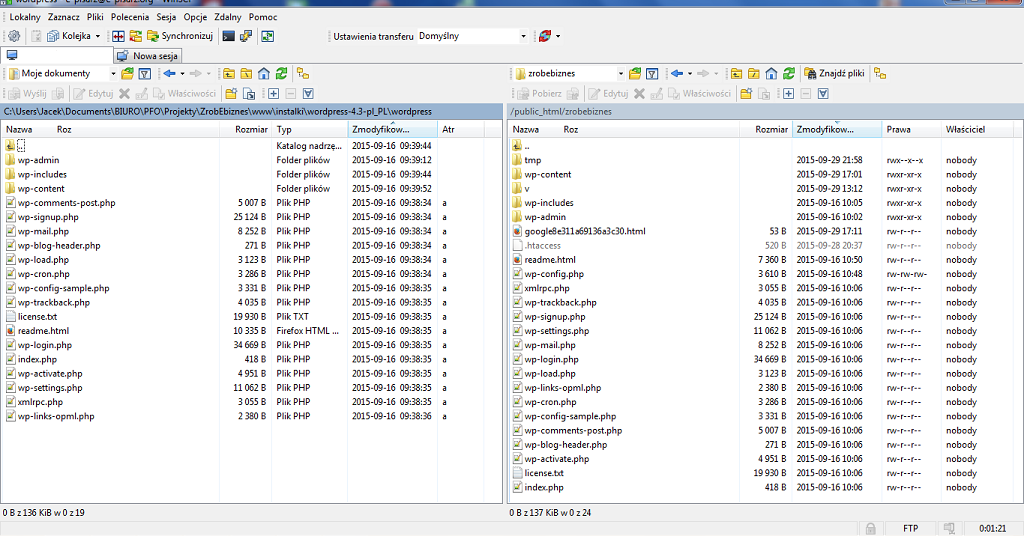
Z lewej strony wybieramy katalog, w którym rozpakowaliśmy pobrane archiwum ZIP z WordPress'em (domyślnie: 'wordpress') i zaznaczamy wszystkie pozycje (np. 'Menu' -> 'Zaznacz' -> 'Zaznacz wszystkie'). Następnie przeciągamy wszystkie zaznaczone pliki do prawego okna, tym samym wysyłając je w komplecie na nasz serwer. Zwróć uwagę, czy w oknie z podglądem dysku serwera (tutaj: prawym) znajdujesz się w poprawnej lokalizacji.
Po tej operacji (która może trochę potrwać, w zależności od szybkości łącza) zawartość obu okien powinna być jednakowa.
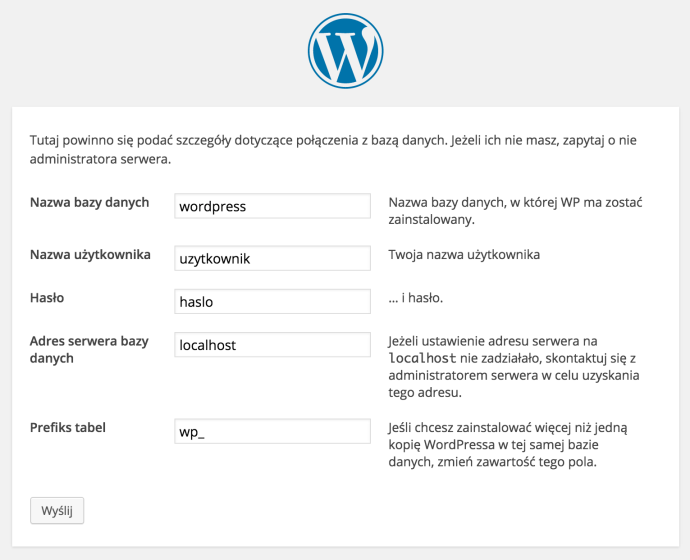
Po skopiowaniu wszystkich plików przechodzimy do instalacji WordPress. Jeżeli mamy już skonfigurowaną własną domenę, po prostu uruchamiamy ją w przeglądarce i wykonujemy polecenia kreatora. W kilku krokach uzupełniamy wymagane pola, wykorzystując m.in. informacje z sekcji 'Bazy danych' panelu hostingu:
- - Nazwa bazy danych: tutaj kopiujemy pole 'Nazwa’ w sekcji ‘Bazy MySQL’ panelu
- - Nazwa użytkownika: j/w
- - Hasło: to, które wygenerowaliśmy
- - Adres serwera bazy danych: w podstawowej konfiguracji zostawiamy wpis domyślny
- - Prefiks tabel: dobrym pomysłem jest wpisanie tutaj dziwnego ciągu różnych znaków, zakończonego podkreślnikiem (np.: ‘dE12k_’)
W kolejnym kroku wprowadzimy tytuł naszej strony (który można później zmienić) oraz dane głównego konta administracyjnego (nie ‘admin’, ‘administrator’, itp.!), za pomocą którego zalogujemy się w kokpicie (części administracyjnej) WordPressa.