On this chapter we will takie care of visual matter, which means to color your service. Basically, you have three main choices:
- - create your own theme (it requires a good knowledge of graphic programs, how to create templates and HTML language),
- - charge a graphic artist, who specialize in creation of WordPress themes,
- - download a free theme, or buy a finished one (prices start with few $)
We will focus on 3rd option, so we will try to find a theme, which will be acceptable for our expectations. Of course taste is not discussed, so the final choice is yours :)
Let's begin with starting of WordPress panel. After that, from the left menu choose 'Apperacne' -> 'themes' -> 'Add new':
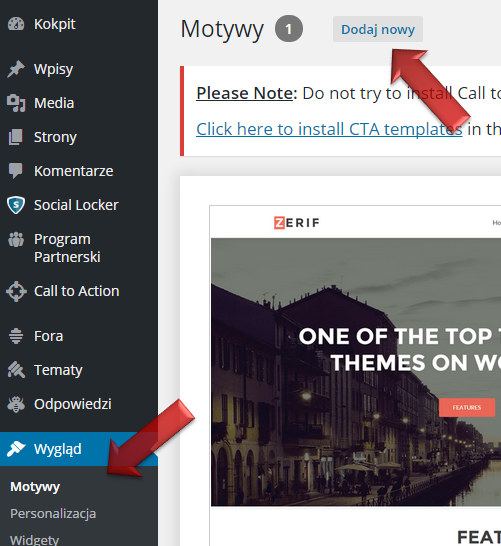
Now, you should be able to see a theme browser, which is supported by WordPress. It does not deplete your options, but it's the most easiest way on the beginning. Results can be filtered, and what's more you can type the name of knowing theme and press Enter.
You can check how they work - just point your mouse cursor on the one you selected and press 'Details and preview':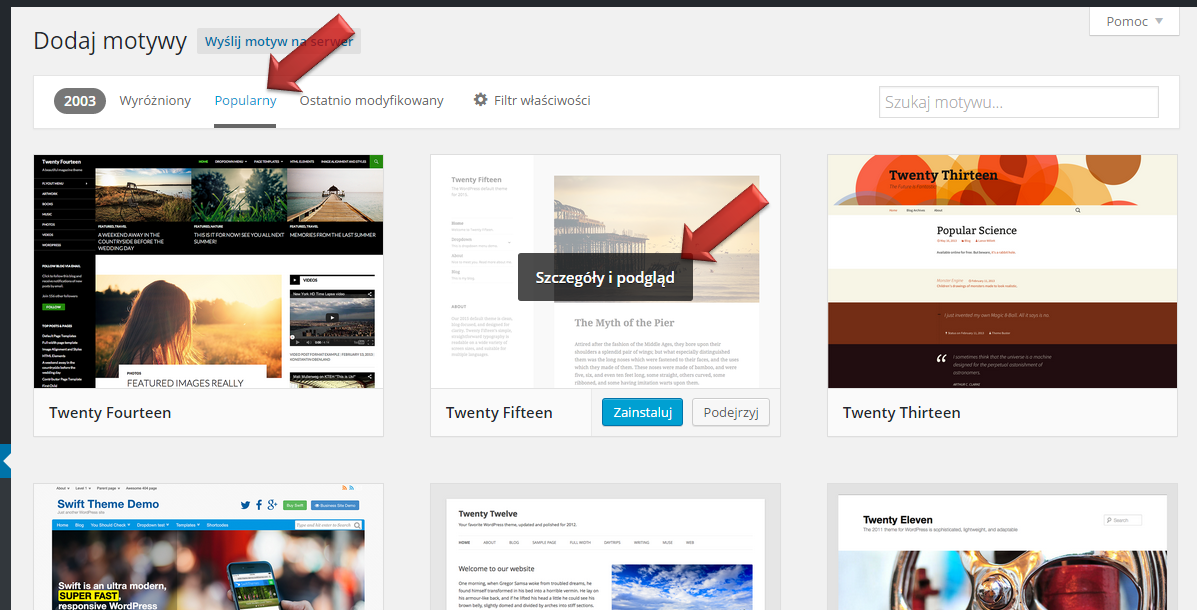
Your panel will change its appearance for a moment: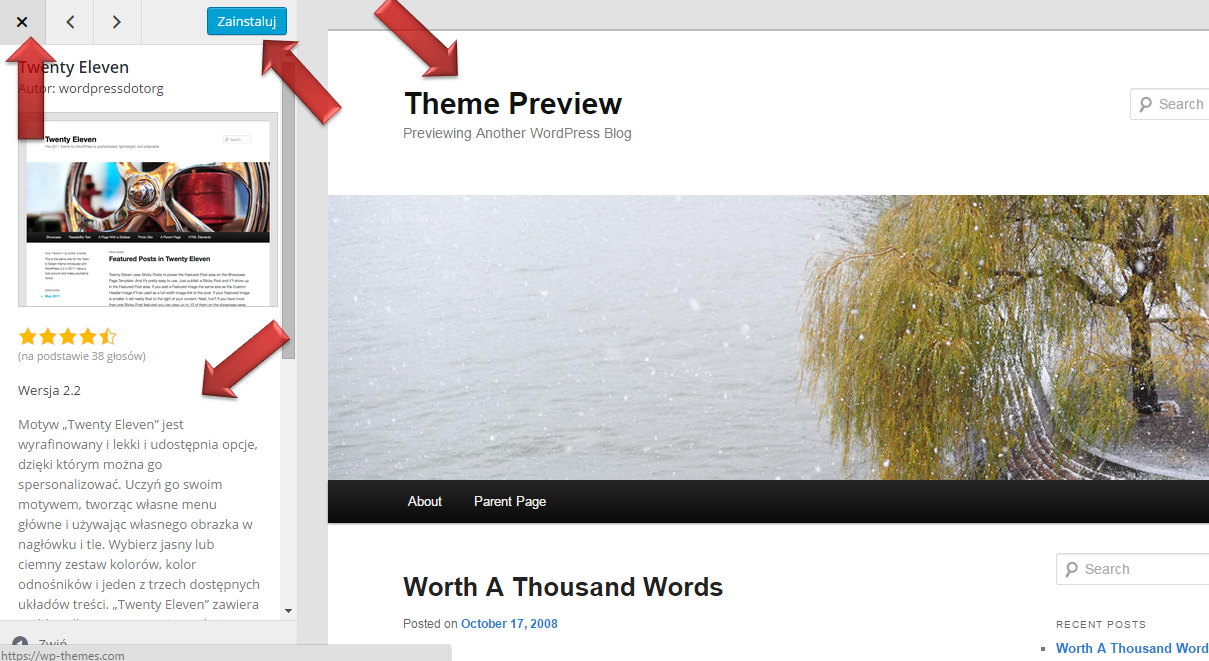
You can find skin describe on the left side, and its visual image on the right. One thing: on this stage you shouldn't pay attention on pictures used in this visual image - they are only examples, and ultimately you will upload your own ones.
In preview mode you have possibility to install selected theme instantly - ust click on 'Install' button, and you should see communication:
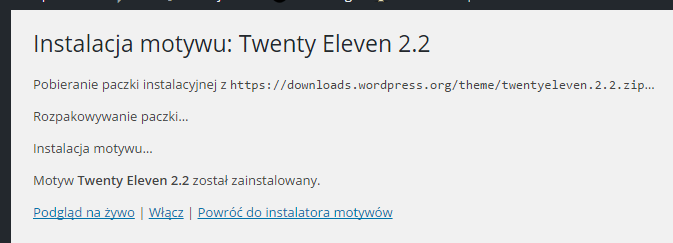
If you want to turn off preview mode click 'x' symbol in left upper corner.
You can install many themes inside your system and make final choice later. All you have to do is choose (in the right moment) from the left menu: 'Appearance' -> 'Themes', and then use your mouse cursor to select a theme you want and press 'Turn on'.
You can switch between themes whenever you want to. Yet, it is good to remember about few things:
- - not all of the themes are fitting requirements in 100%, so they won't act identically (what you will set on one of them, it doesn't mean that it will work on another one),
- - some of the skins have their own options/settings, so configuration results might be different on other theme,
- - in your WordPress it is good to keep an order, so usually you should uninstall useless addons.
When you make your final choice, go to settings bounded with the same theme by clicking: 'Appearance' -> 'Personalisation'. Ok, let's move to configuration mode: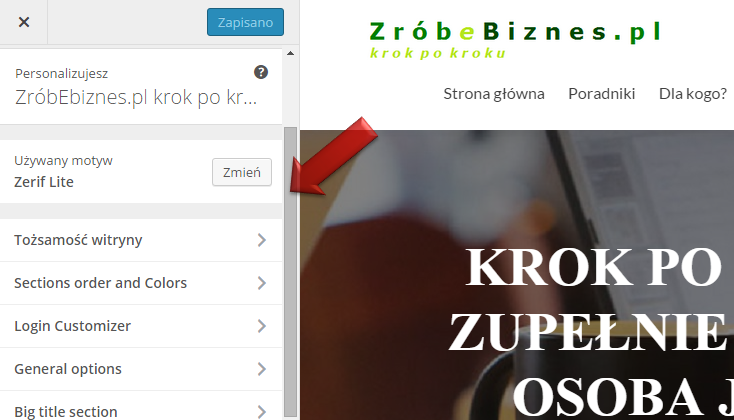
Further settings depend on selected theme and usually are well described. It really is a choice of selecting one by one options available from the left side, decide or fill the content in the forms, preview on the right side and in the end acceptance by cliking on 'Save and publish' button:
Once configuration above is finished, you can enjoy the selected theme.
Below you can find links to chosen places, where you can find different WordPress themes. Another ones can be easily find by typing a phrase in a browser, for example: wordpress (templates, skins or themes). You can find an example by clicking here. Installation and configuration of that theme is very similar to the one described in this tutorial, with one difference:
- - chosen theme should be saved on your local disk,
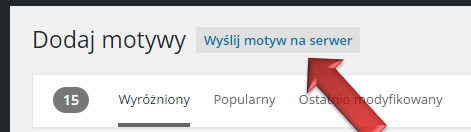
- - then click on 'Appearance' -> 'themes' -> 'Add new' -> 'Send theme to the server',
- - after that select saved theme and click 'Install':
Few website examples with themes (free and payable):
- - motywywordpress.pl
- - fabthemes.com
- - simplewpthemes.com
- - andersnoren.se
- - themes.gigr.pl
- - themeforest.net
- - themeisle.com
One more thing at the end. Remember, when you decide to get a commerce theme (payable one), usually you should receive a full support in package. Don't hesitate to use it :).